Teleprompter.com
Teleprompter LLCProductivity
4.6299.00 Reviews
- Version
- Varies With Device
- Installs
- 500.00K
- Age Rating
- Everyone
Screenshots
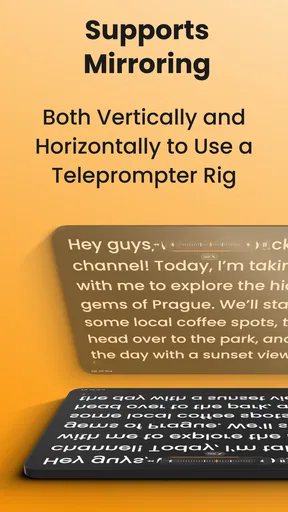
Our Review of Teleprompter.com
 Analysis by Appyee
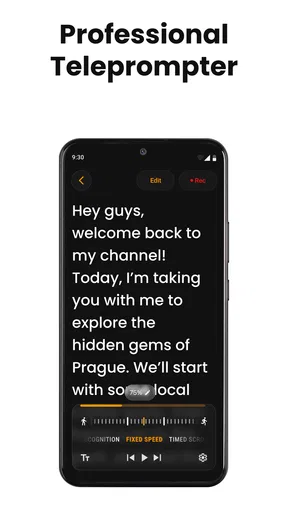
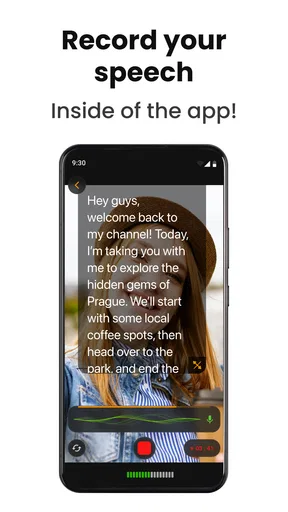
Recording a clear video becomes much easier when I am not trying to remember every sentence at the same time. That is the basic appeal of Teleprompter.com, a productivity app from Teleprompter LLC that puts a scrolling script alongside the camera workflow. I found it most useful for short presentations, tutorials, announcements, lessons, and social videos where sounding prepared matters but reading from a sheet of paper would be awkward.
The app is free to start, has an Everyone age rating, and is available for devices running Android 9 or later. It has already attracted over 500 thousand installs, with a 4.6 average from around 11 thousand ratings. Those figures suggest that it is not a niche script reader, but the real question is whether it fits the way you record. In my experience, it works best when treated as a repeatable preparation tool rather than a magic solution for natural delivery.
My baseline workflow for recording with a script
I would begin by writing or importing a script before opening the camera. That sounds obvious, but it changes the whole experience. A teleprompter cannot fix text that is too formal, too dense, or written in a voice you would never use aloud. I get better results when I turn long sentences into short speaking lines, add pauses with blank spacing, and place the key idea near the beginning of each section.
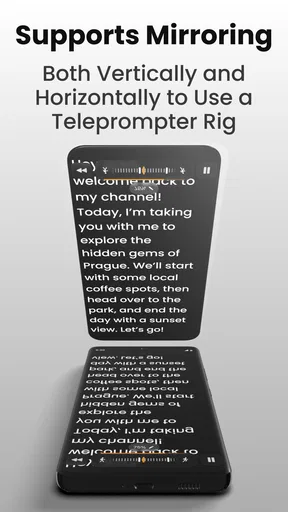
Once the script is ready, I position the phone as close to the lens as the setup allows. This is important because the farther the words sit from the camera, the more obvious the eye movement becomes. Teleprompter.com helps me keep my place, but it does not remove the visual difference between looking directly into a lens and looking several centimetres to one side. A small tripod or a stable stand makes a bigger improvement than endlessly adjusting the scroll speed.
My first pass is never the final take. I use it to find awkward phrases, places where the text moves too quickly, and sentences that look fine on screen but are difficult to say. I then edit the script instead of forcing myself to perform it perfectly. This is one of the app’s strongest practical benefits: corrections are cheaper before recording than after discovering that every take contains the same stumble.
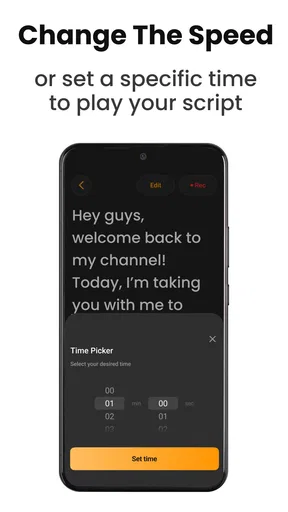
For a short talking-head clip, I prefer a script that is slightly slower than my natural reading pace. If the words race ahead, my voice becomes hurried and my face looks tense. If they crawl, I start waiting for the next line and lose energy. The right setting depends on the speaker, so I spend a few seconds testing rather than assuming a default will suit me.
Where it fits in an ordinary day
A realistic example would be a small business owner preparing a weekly product update. Instead of memorising a paragraph during a lunch break, they can draft three short sections: what changed, why it matters, and what viewers should do next. I would rehearse the opening once, record a rough version, then shorten any line that sounds like written copy. The app handles the memory burden while the speaker focuses on tone and eye contact.
The same workflow suits a student explaining a project, a teacher recording a lesson introduction, or a creator making several related clips. It is especially helpful when the same person must record in a quiet window and cannot afford many failed attempts. It is less useful for spontaneous interviews, live conversations, or videos where reacting naturally matters more than following prepared wording.
Making the script sound spoken
I recommend marking the script for breathing and emphasis, even if those marks are only simple line breaks. I also avoid filling the screen with a complete essay. A concise prompt encourages me to explain an idea instead of staring at every word. For important phrases, I may write only a cue such as “mention the customer problem” rather than a complete sentence. That approach gives the app a supporting role and keeps the delivery from sounding read aloud.
Another useful habit is separating facts from performance notes. I keep the words I must say in the main script and place reminders such as “slow down” or “show the close-up” on their own lines. During rehearsal, those notes reveal where the production needs attention. They also make it easier to decide whether the problem is the script, the pacing, or the camera setup.
Settings worth checking before the first serious take
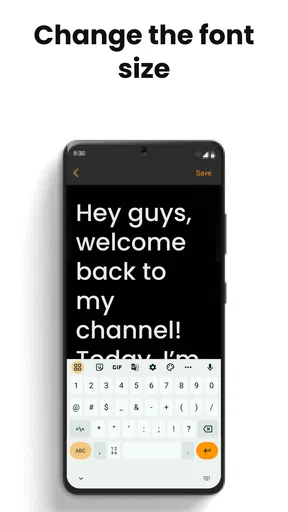
The most valuable adjustments are the ones that affect readability and rhythm. I check text size first. Small text may show more lines, but it encourages squinting and makes the next sentence harder to anticipate. Larger text can reduce how much is visible, yet it usually creates a calmer reading experience. I then adjust the scroll speed while speaking aloud, not silently, because spoken timing is different from the speed that feels comfortable in my head.
Text contrast and background appearance also deserve attention. A bright room, a dark room, and an outdoor setup do not make the same display choice comfortable. I prefer a clean, high-contrast presentation that lets me recognise the next phrase without searching. If the screen is difficult to read, I am more likely to lose eye contact and restart a sentence.
The best setting is the one that disappears during recording. If I am consciously managing the prompt every few seconds, the setup is not ready. I test the opening, a sentence with punctuation, and the longest paragraph. That short check exposes most pacing problems before I commit to a full take.
It is also worth checking how the script is aligned with the camera position. A prompt can be perfectly readable and still produce distracting eye movement if it sits too far from the lens. I move the phone, stand, or display before trying to solve a physical positioning problem with software. This is a small but often overlooked trade-off: a larger reading area is not automatically better if it pulls attention away from the viewer.
Preparing for different kinds of delivery
For a formal presentation, I use complete sentences and a measured pace. For a short social clip, I break the text into compact beats and leave room for expression. For a tutorial, I divide the script around actions: explain the step, perform it, then continue. That prevents me from reading instructions while my hands are busy doing something else.
When a video includes several sections, I use clear headings and generous separation so I can recognise transitions at a glance. This is more reliable than trying to remember where one block ends in a wall of text. It also makes last-minute editing safer because I can replace one section without disturbing the rest of the structure.
I would not assume that every setting should remain fixed across projects. A close-up portrait, a standing presentation, and a demonstration from farther away need different text sizes and pacing. Experienced use is less about finding one perfect configuration and more about keeping a few dependable setups in mind. The app becomes faster when I stop rebuilding the workflow from scratch each time.
Understanding the free starting point
Teleprompter.com is free to download and use as a starting point, while in-app purchases range from $4.99 to $299.99 per item. I would therefore explore the basic workflow first and decide whether it solves a real recording problem before paying for anything. The wide purchase range means users should read the purchase screen carefully and understand which option matches their needs rather than assuming every useful function is included in the free experience.
For occasional recordings, the free entry point may be enough to test whether reading from a moving script feels natural. Regular creators, teachers, or small teams may find paid options more relevant if they need a broader production routine, but I would judge that by actual usage rather than by the promise of extra convenience. A teleprompter is only valuable when it improves completed videos, not when it adds another subscription decision to the workflow.
Faster patterns that make repeat recording easier
After using the app for more than one project, I stopped treating each script as a separate experiment. I keep a consistent structure: a short opening, the main explanation, a transition, and a closing line. This gives me predictable places to pause and makes the scrolling rhythm easier to set. It also reduces the temptation to write every video from a blank page.
I prepare the first two lines more carefully than the rest because they determine whether I settle into the delivery. If the opening is too long, I spend the first seconds chasing the prompt. If it is too vague, I sound uncertain while trying to find the point. A compact opening lets me confirm that the camera framing, pace, and voice are working before the script becomes more demanding.
Another efficient pattern is recording in sections when the content allows it. I make a clean take of the introduction, then continue with the next topic instead of expecting one flawless performance. This is not a special trick that removes editing, and it will not suit a single continuous presentation, but it is practical for tutorials and short updates. The script helps me return to the correct place without holding the entire outline in memory.
I also use a “cue version” for familiar material. Instead of displaying every word, I reduce the script to prompts, names, figures, and transitions. This creates a useful middle ground between full memorisation and obvious reading. It is one of the more important trade-offs in teleprompter work: complete text gives accuracy, while brief cues usually give a more natural performance.
Shortcuts, habits, and setup discipline
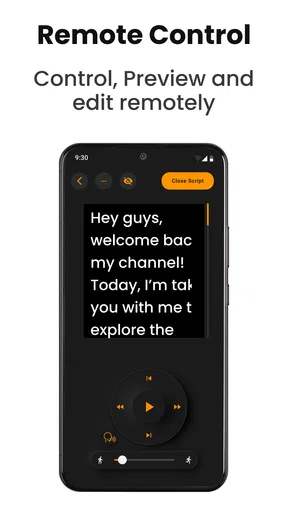
Experienced users benefit from making the physical setup repeatable. I keep the phone at a known height, place the lens near the centre of the prompt area, and test the first paragraph before adjusting anything else. If the app supports the controls available on my device, I use them to avoid touching the screen during a take; when those controls are not convenient, I simply build pauses into the script so I can stop safely between sections. I do not rely on an untested shortcut on an important recording.
I name or organise scripts by project and version rather than keeping several nearly identical drafts. The practical advantage is not glamorous: I am less likely to record from an outdated introduction or forget a late correction. I also read the final script aloud once after editing. Silent proofreading catches spelling, but speaking reveals breathless sentences, repeated words, and transitions that do not sound like me.
For a batch of videos, I set the same framing and opening pace, then adjust only the sections that differ. This creates consistency without forcing every subject into identical wording. If one episode needs a slower explanation, I change that script rather than dragging the entire series to the same rhythm.
When a teleprompter makes the video worse
There is a point where assistance becomes visible. If I follow every word rigidly, my expression can flatten and my eyes can move in a way viewers notice. The solution is not always a faster scroll. Often I need fewer words, larger breaks, or a cue-based script. For emotional, conversational, or highly reactive content, I may use only a short outline and speak freely.
Audio remains separate from the prompt problem. Teleprompter.com can help me remember what to say, but it cannot make a noisy room quiet or replace careful microphone placement. Likewise, it cannot correct poor lighting, an unstable camera, or a distracting background. I see it as one part of a recording chain, not a complete video studio.
Advanced limits and who should choose another approach
The app is a strong fit for prepared speech, but it is not the right choice for every production style. If I need a full editing suite, detailed scene control, advanced live broadcasting tools, or a deeply integrated multi-camera workflow, I would look elsewhere or pair the prompter with other software. Its value is concentrated in keeping spoken content available at the right pace.
It also requires a willingness to rehearse. A user who expects to paste a long article into the app and sound polished immediately may be disappointed. Long paragraphs create the illusion of preparation while making delivery harder. The more text I place on screen, the more I have to manage reading speed, eye movement, breathing, and expression at once.
Device compatibility matters too. Android users need Android 9 or newer, so an older phone may not be suitable even if its camera is otherwise adequate. On a supported device, I would still test the camera orientation, screen brightness, and physical mounting before planning a major recording. A technically compatible phone can remain inconvenient if its position makes the prompt difficult to read.
The app is rated for Everyone, which makes it approachable for a broad audience, including students and families using it for ordinary presentations. That rating does not mean every workflow is equally simple. Beginners may need a few attempts to find a comfortable pace, while experienced speakers may prefer cue cards for more freedom. The right choice depends less on experience level than on how much exact wording the video requires.
Compared with handwritten notes, Teleprompter.com gives me a steadier reference and avoids looking down. Compared with memorisation, it reduces preparation time and lowers the risk of forgetting a key point. Compared with a full video editor, it is more focused and less cluttered when the immediate need is delivering lines while recording. Its weakness is the same as its strength: it concentrates on prompting, so it cannot replace tools designed for broader production work.
My verdict after building a repeatable routine
Teleprompter.com earns a recommendation from me for anyone who regularly records prepared videos and wants a practical way to keep wording, pacing, and structure under control. I especially like it for short educational clips, business updates, guided demonstrations, and presentations that need accuracy without sounding memorised.
I would skip it if my videos depend mainly on spontaneous conversation, live reactions, or a highly elaborate production setup. I would also avoid paying for extras until the basic prompt workflow has proved useful in real recordings. The free starting point makes that test relatively straightforward, while the available in-app purchases mean heavier users should consider their budget carefully.
My final advice is to use the app with restraint: write spoken language, keep the prompt near the lens, test the pace aloud, and convert full sentences into cues whenever natural delivery matters more than exact wording. With those habits, the app becomes less noticeable and the speaker becomes more confident. That is the result I want from a productivity tool—not more technology on screen, but fewer avoidable mistakes in the finished video.
Teleprompter LLC has made a focused tool for a common recording problem, and the 4.6 average from around 11 thousand ratings reflects the fact that the idea is useful to many people. I would not call it a universal answer for video creation, but I would keep it in my toolkit whenever a script must be delivered clearly, repeatedly, and with less pressure on memory.
Verdict
Strengths of Teleprompter.com
- Simple script editor with adjustable scrolling speed and text size.
- Works well for recording videos while keeping your delivery natural.
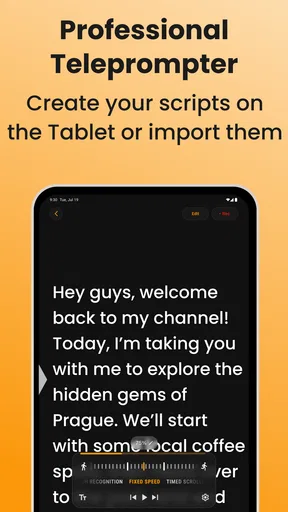
- Supports importing scripts, saving time when preparing longer recordings.
- Useful for presentations, tutorials, interviews, and social media content.
- Clean interface makes it easy to start a teleprompter session quickly.
Limitations of Teleprompter.com
- Some advanced features may require a paid subscription.
- Long scripts can be harder to manage on smaller phone screens.
- Reading speed may need frequent adjustment for different speakers.
- Requires careful phone placement to keep eye contact with the camera.
- Performance can vary depending on device size and multitasking limits.
Similar Picks in This Category
View All
Google Calendar
Google LLC4.6

Google Drive
Google LLC4.3

Google Assistant
Google LLC3.9

Microsoft OneDrive
Microsoft Corporation4.6

Samsung Calendar
Samsung Electronics Co., Ltd.4.1

Microsoft OneNote: Save Notes
Microsoft Corporation4.6
Frequently Asked Questions
What is Teleprompter.com and who is it designed for?
Teleprompter.com is a script-reading application designed to help users deliver speeches, presentations, videos, livestreams, lessons, and interviews while maintaining eye contact with the camera or audience. It is useful for content creators, teachers, public speakers, journalists, and businesses. The app lets you prepare scripts, adjust their appearance, and scroll the text at a comfortable pace while recording or presenting.
Can I use Teleprompter.com while recording videos?
Yes, Teleprompter.com is intended for recording video while displaying your script on screen. Depending on your device and selected features, you can read scrolling text while using the camera, making it easier to speak naturally without memorizing every line. Before recording important content, it is worth testing the camera position, text size, scrolling speed, and lighting to ensure the script remains easy to follow.
Does Teleprompter.com work on both Android and iPhone?
Teleprompter.com is available for mobile devices and is designed to support common smartphone and tablet workflows on Android and iOS. However, the exact features, interface, subscription options, and compatibility can vary according to the operating system and device model. Before downloading, check the current store listing for your device, supported operating-system version, and any hardware requirements related to camera or recording functions.
Is Teleprompter.com free to use, or does it require a subscription?
Teleprompter.com may offer free tools or a trial experience, while advanced capabilities can be provided through in-app purchases or a subscription. Premium options may include expanded script management, additional customization, recording features, or synchronization tools. Pricing and available plans can change by platform and region, so review the app-store purchase information carefully before starting a trial or confirming a recurring subscription.
Can I import, edit, and customize scripts in Teleprompter.com?
The app is built around preparing and managing scripts, allowing users to enter or edit text before presenting or recording. It also provides controls intended to improve readability, such as changing font size, spacing, alignment, and scrolling speed. Import options and supported file formats may depend on the device and plan. For longer projects, test your script layout in advance so headings and pauses appear correctly.
